How to Add a GitHub Stats Card to Your Profile README
The GitHub stats card is the most widely used GitHub profile widget. It generates a card showing your total stars earned, commit count, pull requests, issues filed, and a calculated contribution score — all pulled from your public GitHub activity in real time. This guide uses the anuraghazra/github-readme-stats project, which hosts the card at a public Vercel endpoint. Adding it requires a single markdown line and takes under a minute.
Quick Setup Steps
- 1
Step 1: Open your GitHub profile repository and edit README.md.
- 2
Step 2: Add the stats card image tag replacing YOUR_USERNAME with your GitHub handle.
- 3
Step 3: Include count_private=true and include_all_commits=true parameters for accurate stats.
- 4
Step 4: Choose a theme parameter that matches your profile's color scheme.
- 5
Step 5: Commit and push. Visit your GitHub profile to verify the card renders with your actual stats.
What Is the GitHub Stats Card?
The github-readme-stats project (70,000+ stars) generates dynamic SVG cards from your GitHub data. The core stats card displays: total stars earned across all your public repositories, total commits (current year by default, or all time if you enable the option), pull requests opened, issues created, and a composite score called 'Contribution Score' derived from these metrics.
The card answers the most basic question any visitor has: does this person actually contribute code? A developer with thousands of commits and hundreds of stars earned has verifiable activity that no amount of self-description can replicate. The card renders in real time from GitHub's public API, so the numbers stay current without manual updates.
How to Add the GitHub Stats Card
Add this to your README, replacing YOUR_USERNAME:
Critical parameters to always include:
count_private=true— counts contributions from private repositories (most professional developers do meaningful work in private repos; without this, your stats look deflated)include_all_commits=true— shows commits from all years, not just the current calendar yearshow_icons=true— adds small icons next to each stat for better readability
Optional parameters:
hide=issues— hides specific stats (comma-separated:stars,commits,prs,issues,contribs)rank_icon=github— shows a letter rank (S, A, B, C) based on your statsshow=reviews,discussions— adds review count and discussion count to the card
Choosing a Theme for Your Stats Card
The stats card ships with 30+ built-in themes. The most commonly used:
tokyonight— dark navy with cyan/green accents (matches popular editor theme)radical— pink/purple gradient on dark backgroundtransparent— no background, inherits GitHub's page color (works in both light and dark mode)dark— simple dark card with white textgruvbox— warm amber and green tonesgithub_dark— matches GitHub's own dark mode palette
For profiles using both light and dark mode GitHub, transparent is the safest choice — it blends into whatever background the visitor has set. Themes with solid light backgrounds (like default) create a jarring white box on dark-mode profiles.
Troubleshooting the GitHub Stats Card
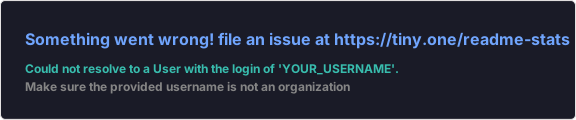
If the card shows 'Maximum retries exceeded', the public Vercel instance is rate-limited. Wait a few minutes or deploy your own instance by forking the repository to Vercel (takes 5 minutes, eliminates rate limits permanently).
If your stats appear lower than expected for a senior developer, add &count_private=true&include_all_commits=true — many experienced developers do most of their work in private repositories and their public stats look sparse without these flags.
If the theme looks wrong in dark mode, switch to transparent or github_dark. If the card width doesn't fit your layout, add &card_width=500 (or any pixel value) to control the output width.
Frequently Asked Questions
How do I add a GitHub stats card to my README?
Add this markdown to your README: ``. Replace YOUR_USERNAME with your GitHub handle. The card renders immediately — no API key or account needed.
Is the GitHub stats card free to use?
Yes. The anuraghazra/github-readme-stats project is open source under MIT license. The public Vercel endpoint is free and maintained by the community. For guaranteed uptime, you can fork and deploy your own Vercel instance in about 5 minutes — the project's README has detailed instructions.
Why does my GitHub stats card show wrong or low numbers?
Add count_private=true and include_all_commits=true to your URL. Without count_private, contributions to private repositories are excluded. Without include_all_commits, only the current calendar year is counted. Both flags are recommended for developers with more than 1-2 years of GitHub activity.
Why is my GitHub stats card not loading?
The most likely cause is rate limiting on the public API endpoint. Wait 2-5 minutes and try again. If it persists, self-host the project on Vercel — fork anuraghazra/github-readme-stats, deploy to Vercel, set a PAT_1 environment variable (GitHub personal access token), and update your image URL to your own Vercel domain.
From Our Blog
- Complete Guide to GitHub Badges for Your README
Learn how to add shields.io badges, GitHub stats cards, and tool badges to your GitHub profile README. Includes ready-to-use code for 50+ popular technologies.
- Best GitHub README Widgets and Tools: The Complete 2026 List
A curated list of the best GitHub profile README widgets — from snake animations to Spotify players, stats cards to 3D contribution graphs. Includes setup instructions for each.
- How to Add GitHub Stats Cards to Your README (2026 Guide)
Step-by-step guide to adding GitHub stats cards, language cards, streak stats, and WakaTime cards to your GitHub profile README using github-readme-stats.
Generate Your GitHub Profile README
Generate a GitHub profile README featuring GitHub Stats Card with AI
Try It Free — No Sign UpMore Widget Guides
How to Add Spotify Now Playing
Step-by-step guide to adding Spotify Now Playing to your GitHub README
How to Add WakaTime Coding Stats
Step-by-step guide to adding WakaTime Coding Stats to your GitHub README
How to Add Snake Contribution Animation
Step-by-step guide to adding Snake Contribution Animation to your GitHub README
How to Add Profile Views Counter
Step-by-step guide to adding Profile Views Counter to your GitHub README
How to Add Typing SVG Animation
Step-by-step guide to adding Typing SVG Animation to your GitHub README
How to Add GitHub Streak Stats
Step-by-step guide to adding GitHub Streak Stats to your GitHub README